

Guides · Writing
Format text: headings, lists, colors, highlights and shortcuts
The toolbar above your sermon formats whatever you select. Everything you see here also shows in Podium Mode and when you print.
Updated October 16, 2026 · 5 steps · Leer en español
The steps at a glance
-
Bold, italic, underline, strikethrough
Select some words, then press B, I, U or
S. Or use Ctrl+B, Ctrl+I and Ctrl+U (⌘ on a Mac).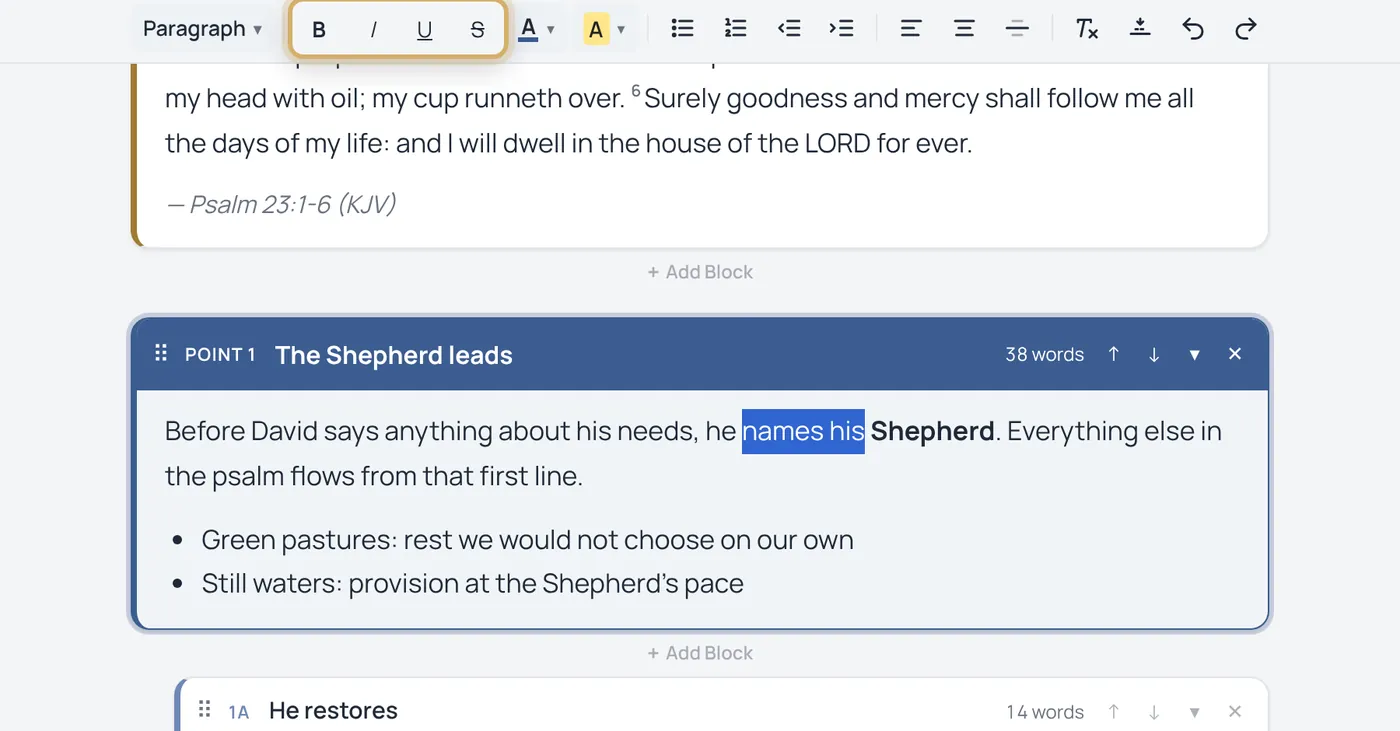
-
Headings and quotes
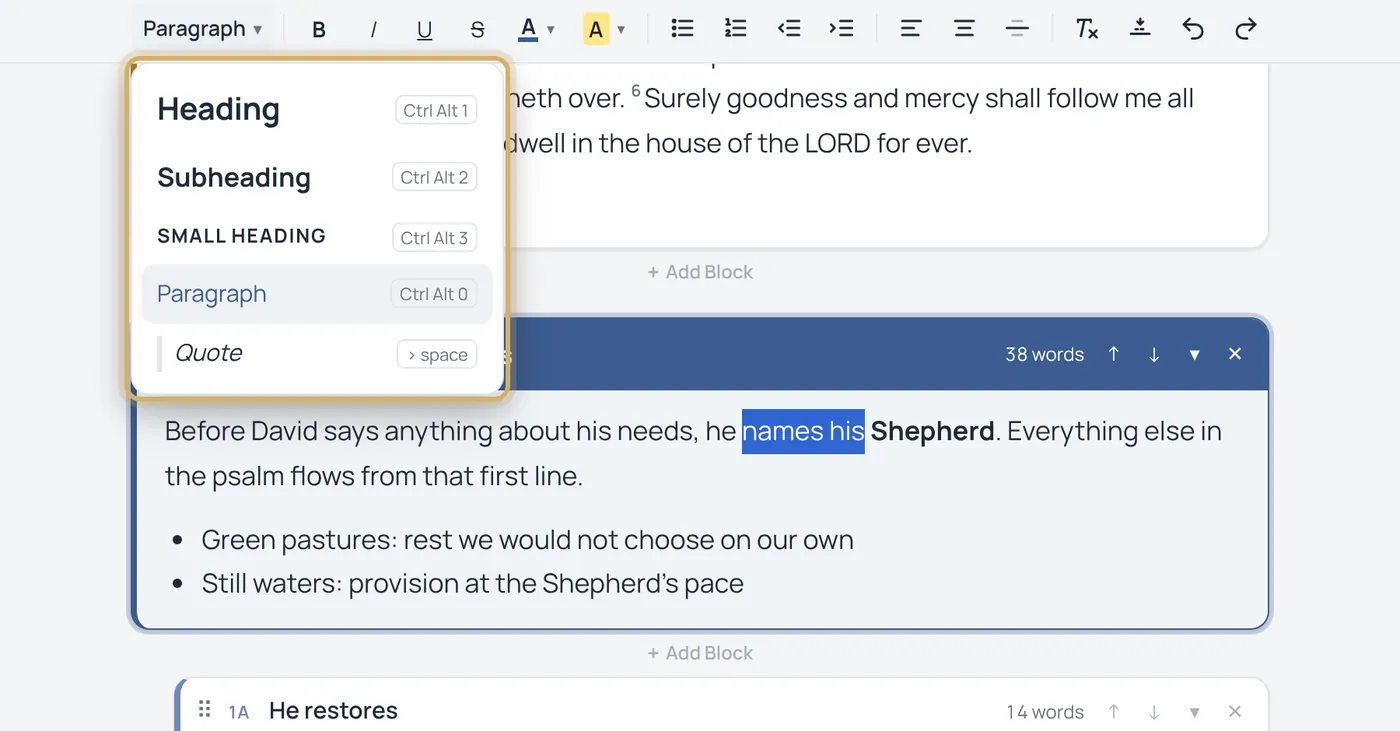
The Paragraph menu turns a line into a Heading, Subheading, Small heading or Quote. Each one shows its keyboard shortcut.
-
Text color and highlight
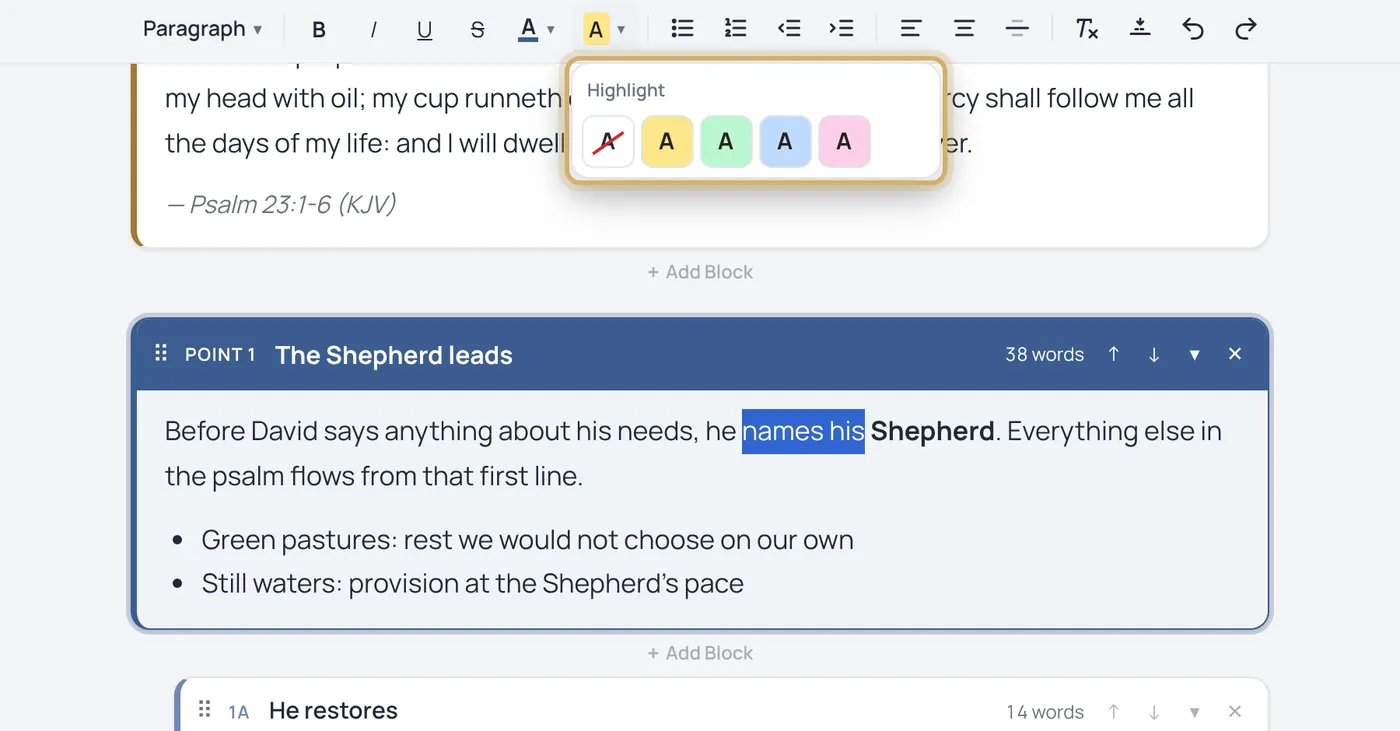
The A menu colors the text; the highlighter menu next to it marks it like a highlighter pen (yellow, green, blue or pink). Choose the first swatch to take a color off.
-
Lists and indents
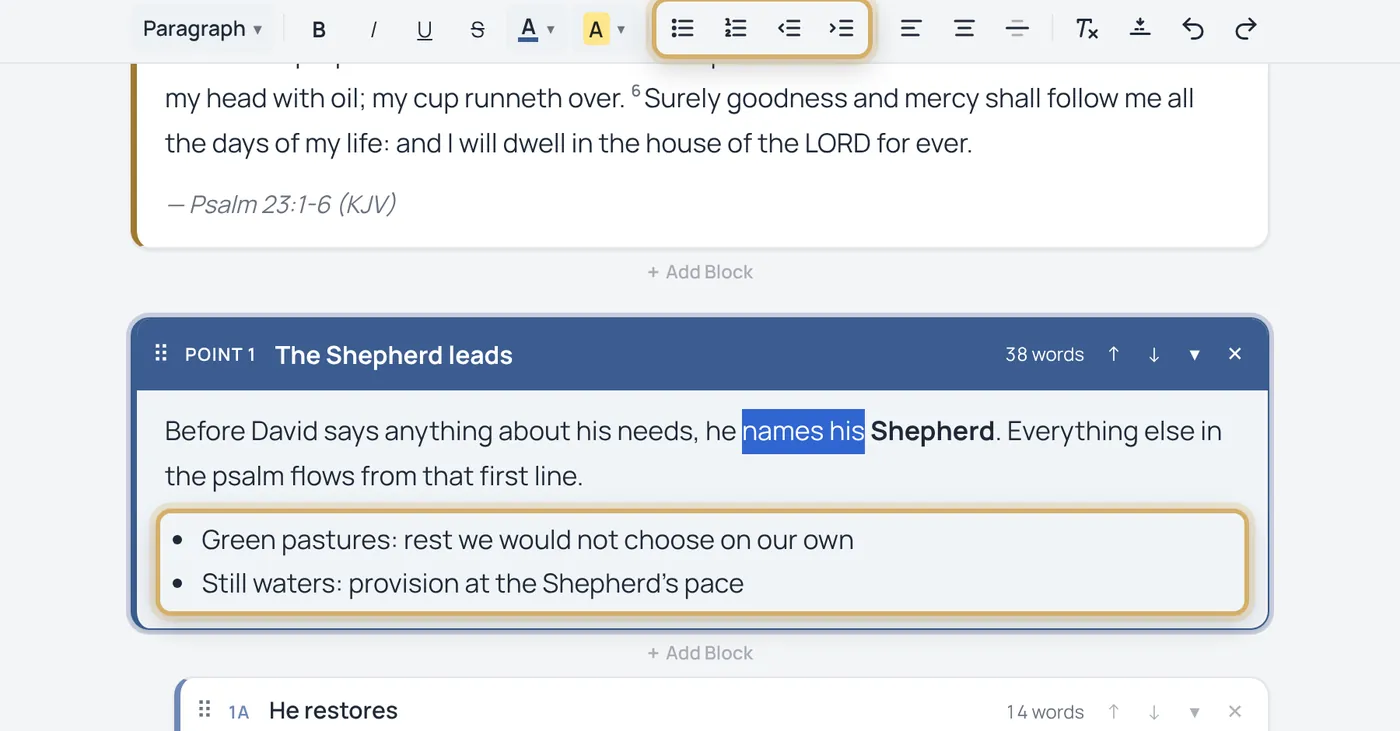
Make a bulleted or numbered list with the list buttons, then indent or outdent items. Inside a list, Tab indents and Shift+Tab moves back out.
-
Clear formatting
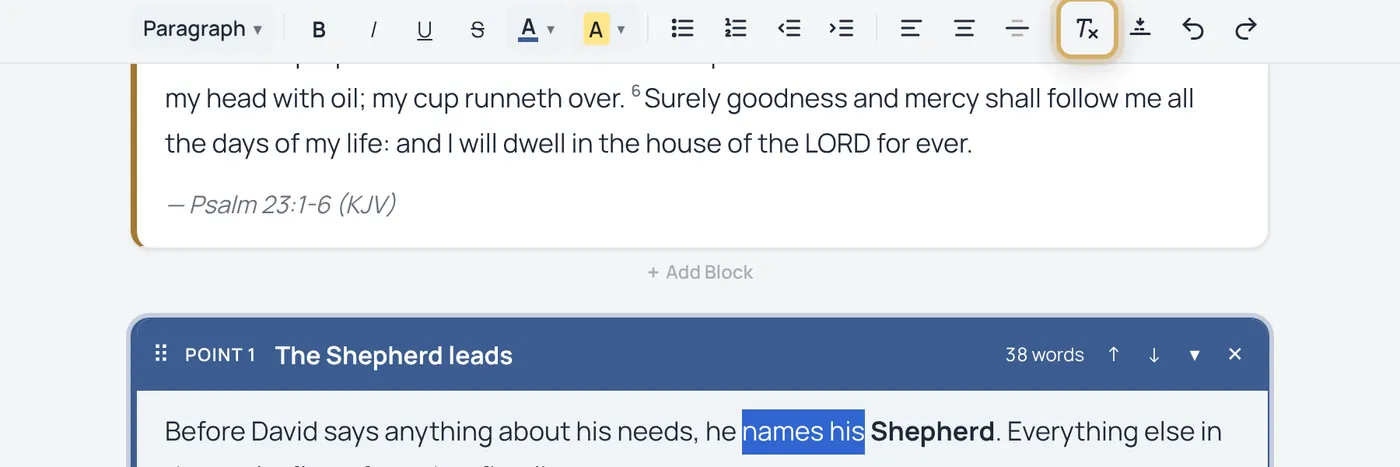
Select the text and press the T with a line through it. The words go back to plain text, without bold, colors or highlights.
Shortcuts as you type
| Type or press | To get |
|---|---|
| - then a space | A bulleted list |
| 1. then a space | A numbered list |
| > then a space | A quote |
| --- then a space | A divider line |
| Ctrl+Alt+1, 2, 3 | Heading, Subheading, Small heading |
| Ctrl+Alt+0 | Back to a normal paragraph |
| Ctrl+Shift+E | Center the line |
| Ctrl+Z / Ctrl+Y | Undo / redo |