

Guides · Writing
Add, move, collapse and remove blocks
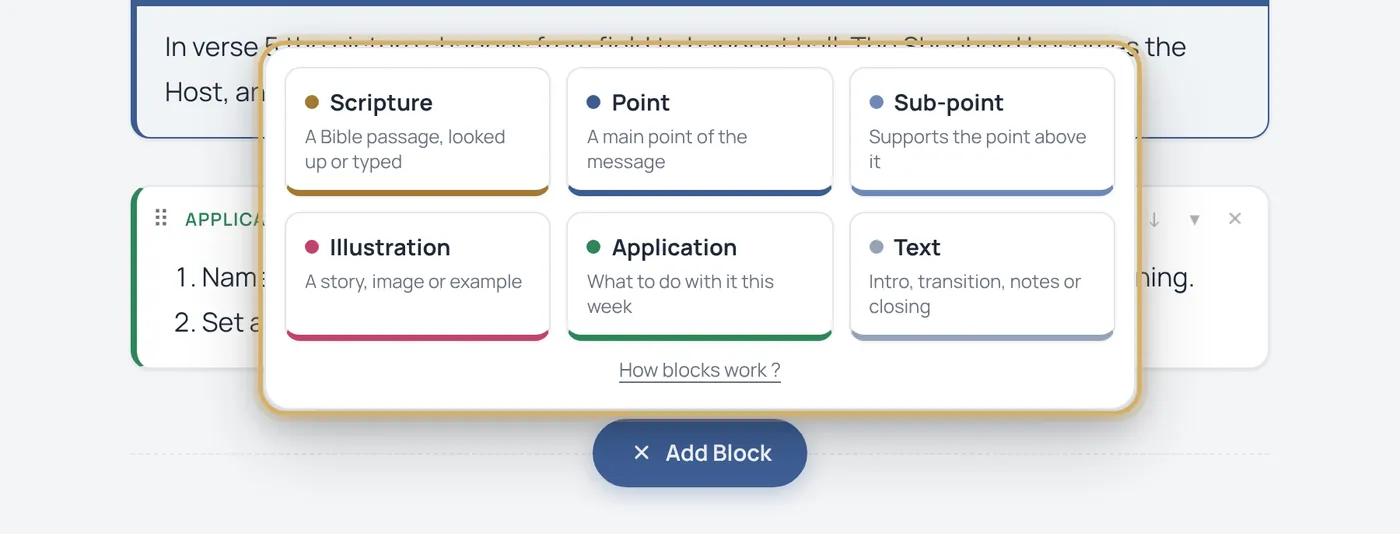
Blocks are the building pieces of a Homileto sermon. Each kind has its own color: Scripture (gold), Point (blue), Sub-point (light blue), Illustration (rose), Application (green) and Text (gray).
Updated October 16, 2026 · 6 steps · Leer en español
The steps at a glance
-
Add a block at the end
Scroll to the bottom of the sermon and press Add Block, then pick the kind you want. The new block appears at the end with the cursor ready.
-
Add a block between two others
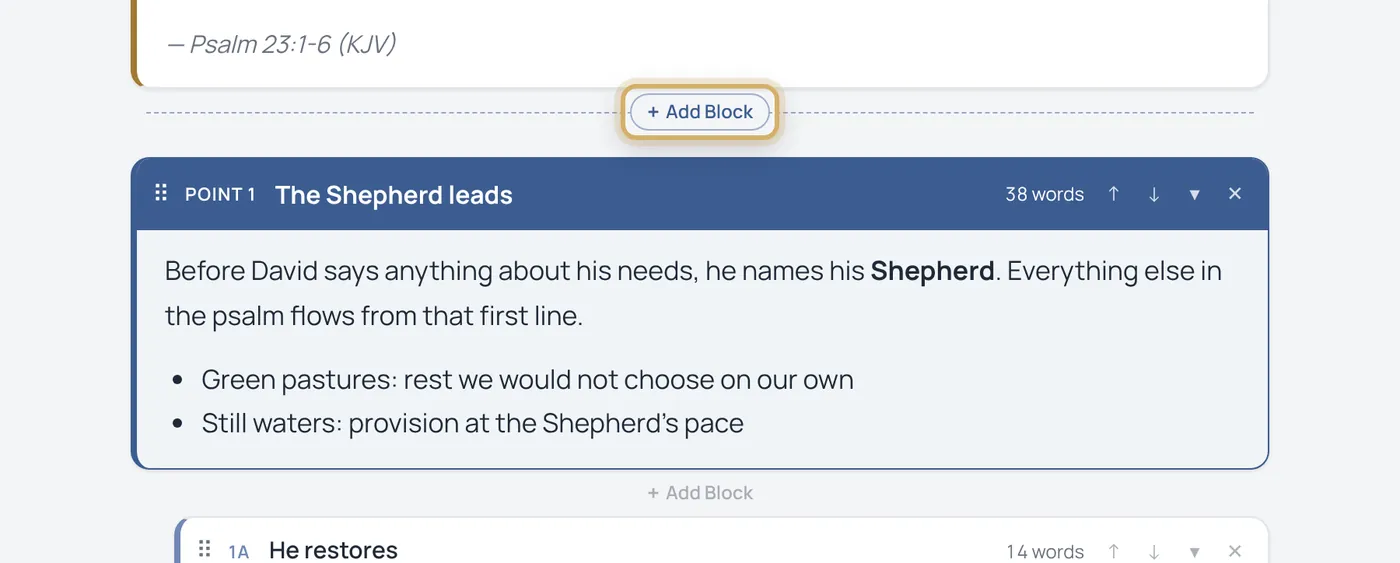
Point between two blocks and a small + Add Block appears. Press it to put the new block exactly there. (On a touch screen it’s always visible.)
-
Give a block a heading
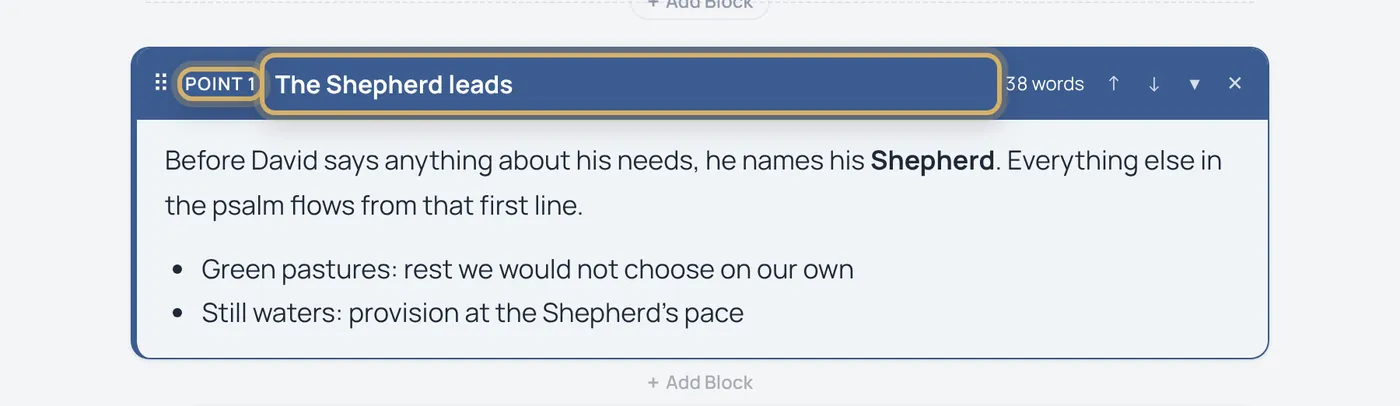
Each block shows its kind and number on the left (Point 1, 1a, Illustration) and has a space for an optional heading. Headings show up in Podium Mode and in the Jump to list.
-
Move a block
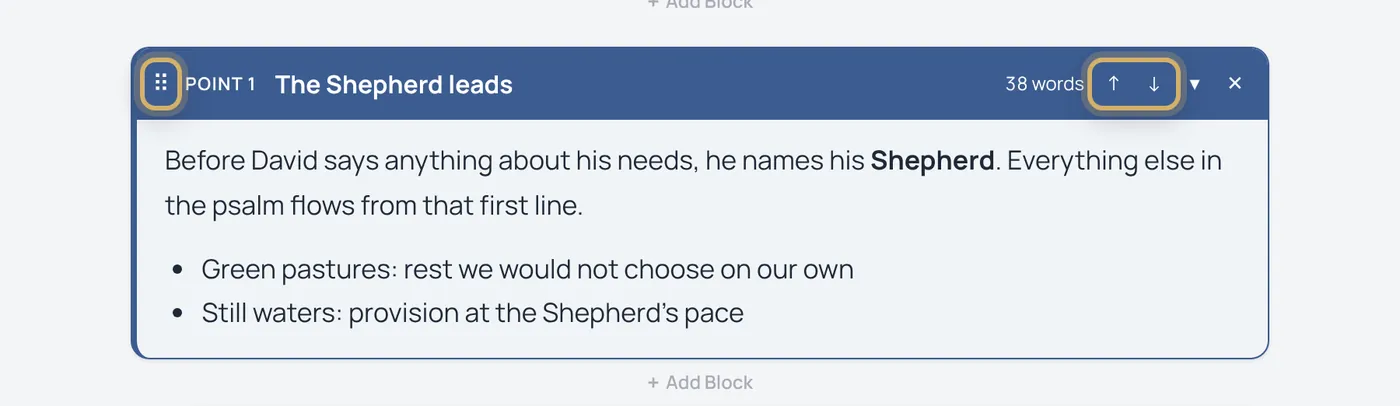
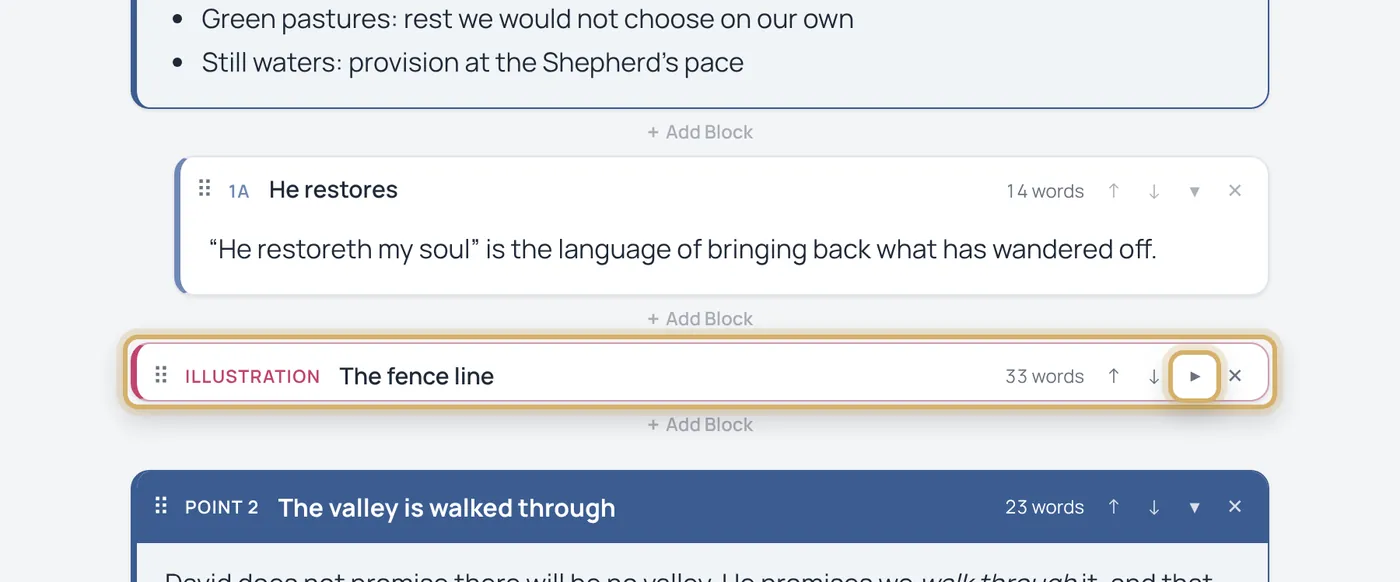
Use the ↑ and ↓ arrows to move a block up or down, or drag it by the dotted handle on the left. Point and sub-point numbers update by themselves.
-
Collapse a block
Press ▾ to fold a long block down to its heading while you work on the rest. Press it again to open it. Collapsing only changes the editor; Podium Mode always shows everything.
-
Remove a block
Press ✕ at the right of the block. If it has words in it, Homileto asks before deleting it.
