
Guides · Account and billing
Change your name, email, password, or light and dark mode
Everything about your account is in one place.
Updated October 16, 2026 · 6 steps · Leer en español
The steps at a glance
-
Open your Account
Press Account at the bottom of your dashboard, or your name at the bottom of the sermon list.

-
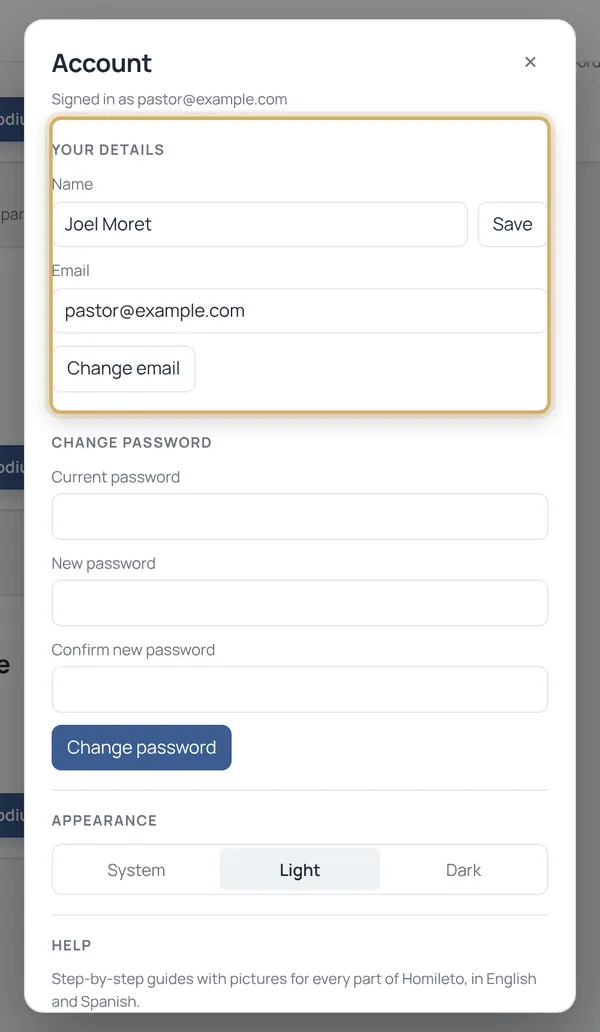
Name and email
Change your name and press Save. To change your email, type the new one and press Change email; Homileto asks for your password to confirm.
-
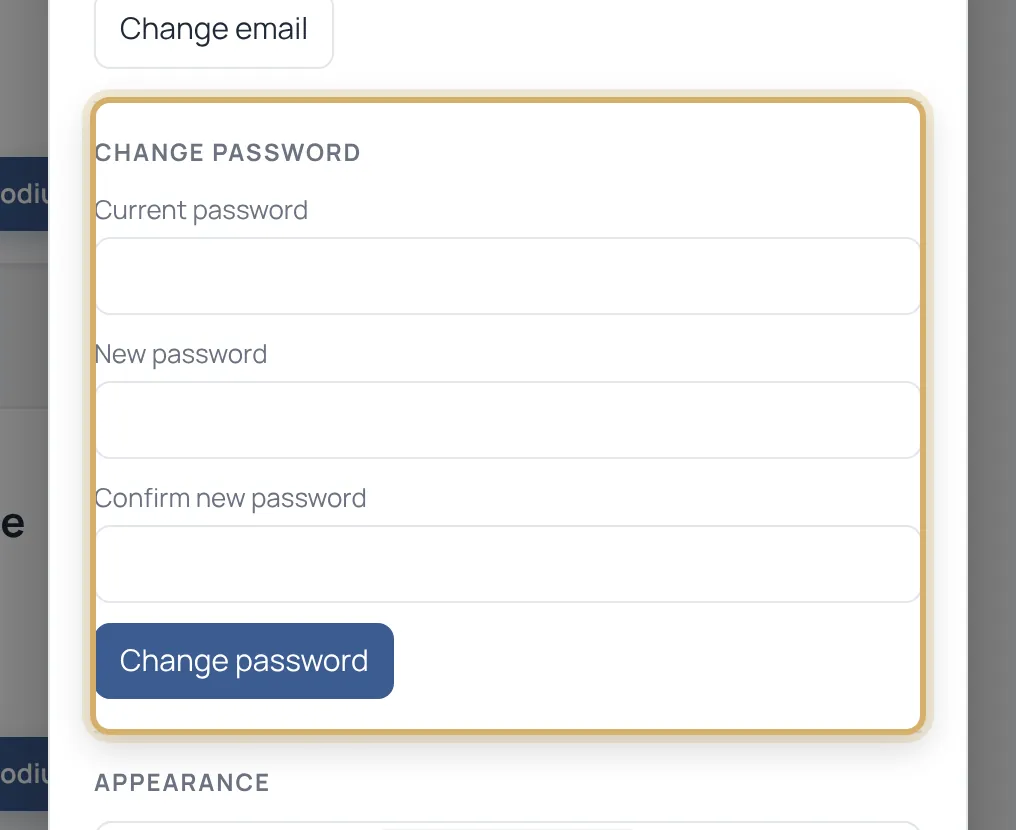
Password
Enter your current password and the new one twice, then press Change password.
-
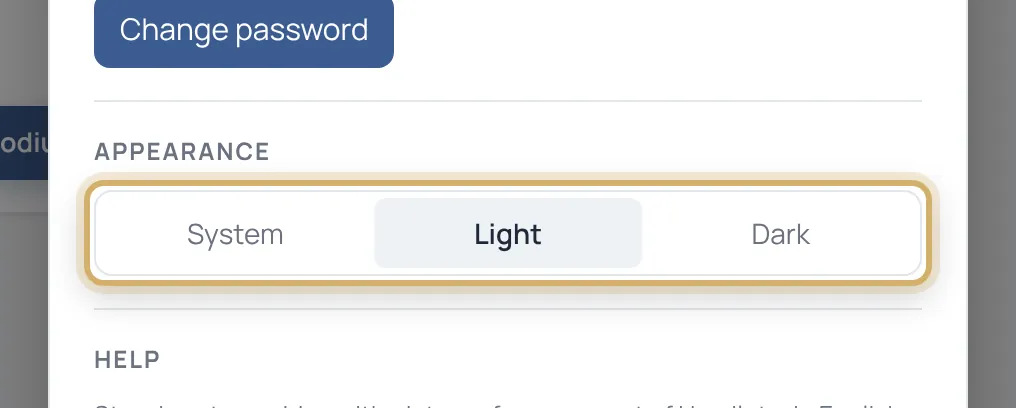
Light or dark
Under Appearance, choose Light, Dark, or System to follow your device.
-
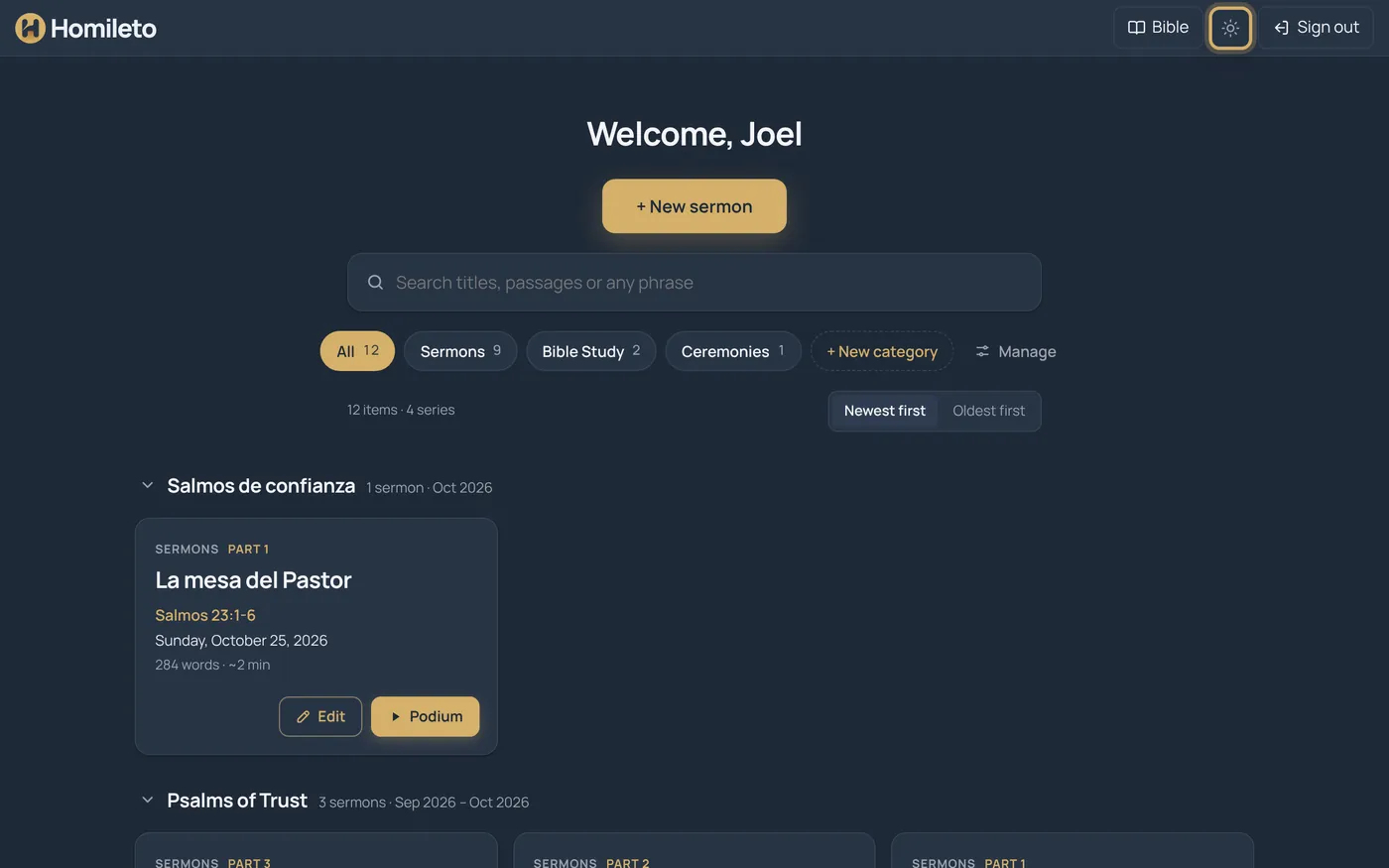
Switch quickly
The moon or sun button in the top bar flips between light and dark in one tap.
-
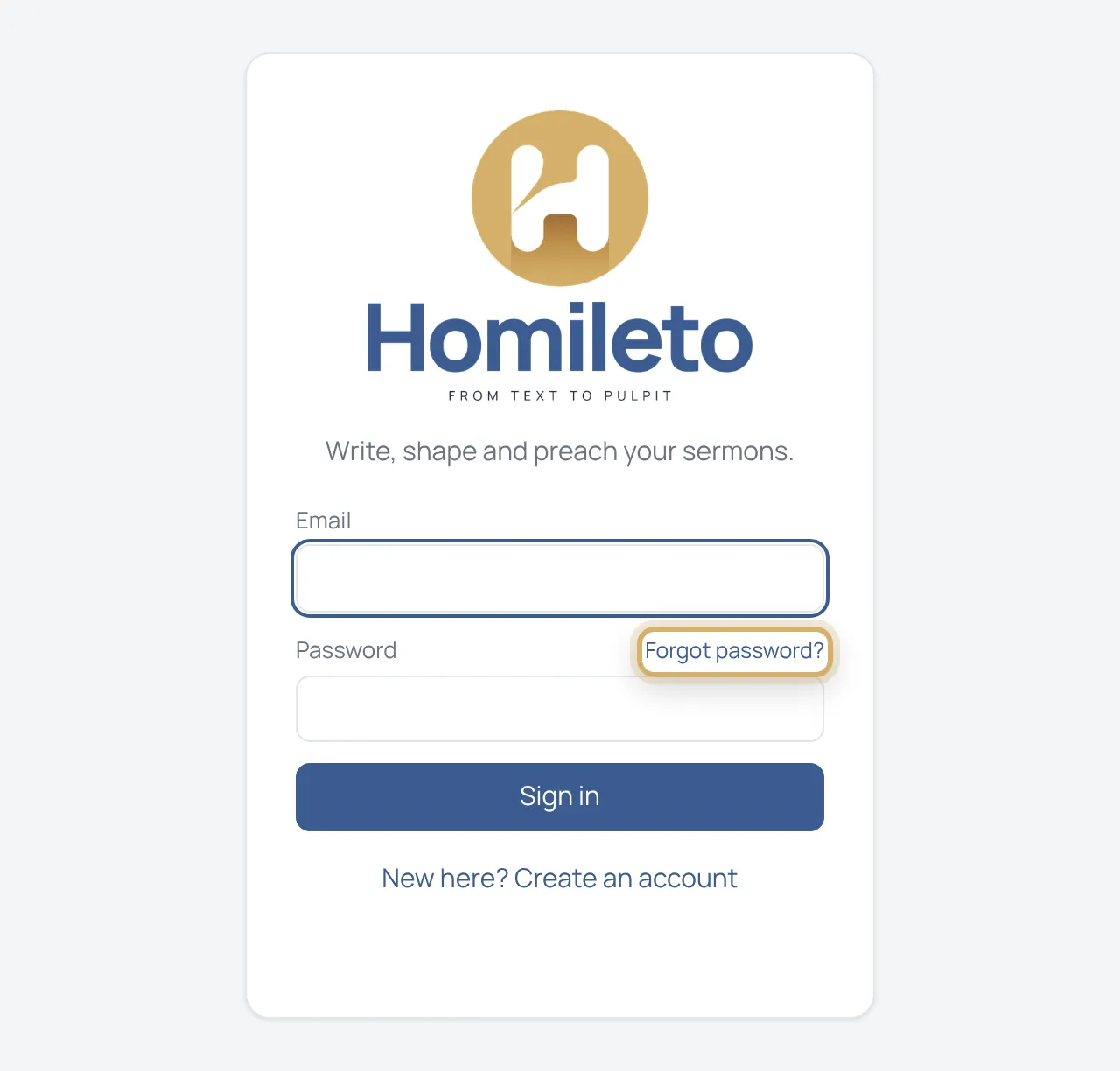
Forgot your password?
On the sign-in screen, press Forgot password? and enter your email. You’ll get a link to set a new one; it works once, for one hour.