

Guides · Preaching
Preach from Podium Mode: timer, clock, text size, themes and clickers
Podium Mode turns your sermon into a clean, large-print view made for the pulpit, with the colored blocks kept as gentle bands so you never lose your place.
Updated October 16, 2026 · 6 steps · Leer en español
The steps at a glance
-
Open Podium Mode
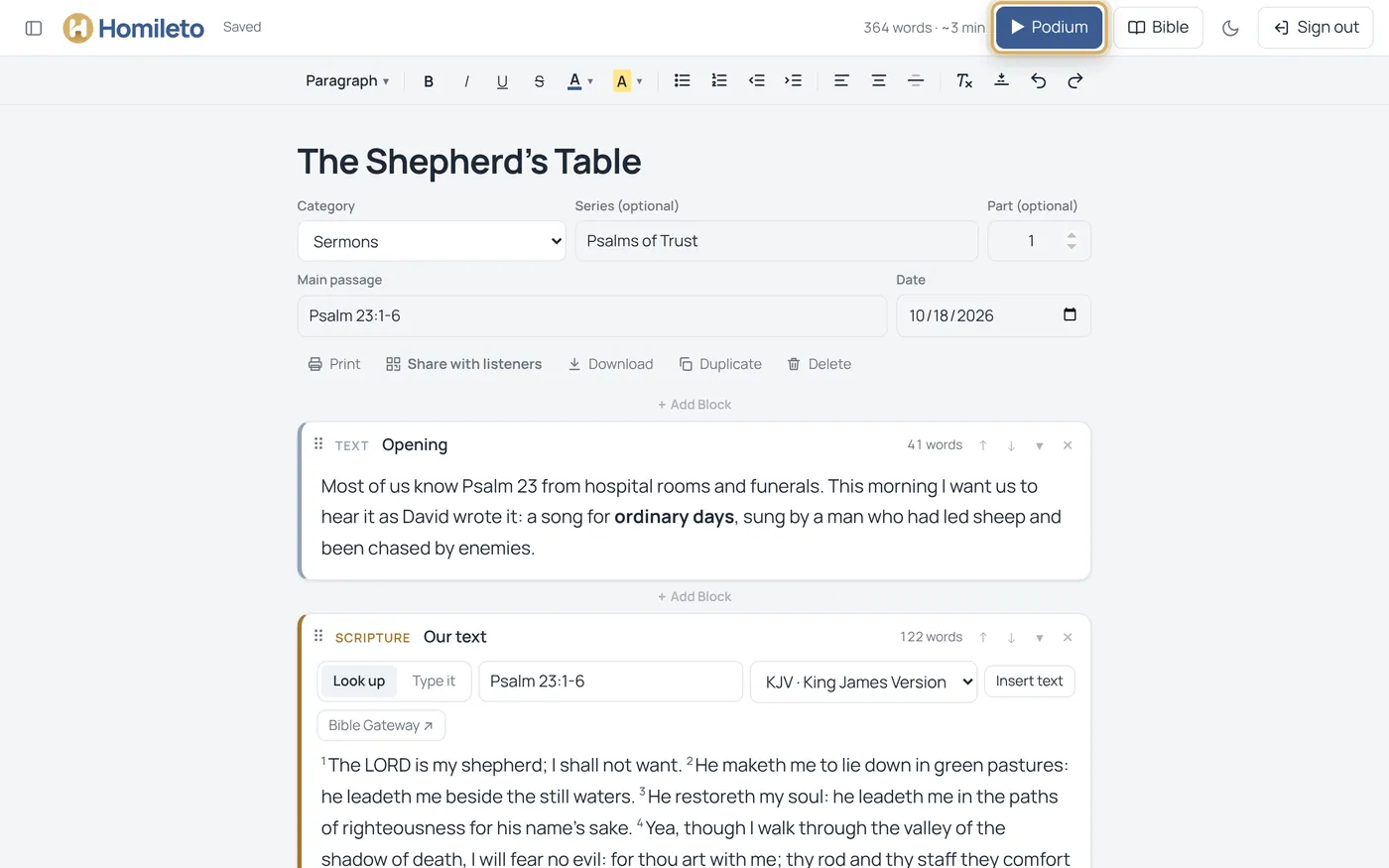
Press Podium in the top bar, or press P. From your dashboard, each sermon card also has a Podium button.
-
Clock and timer
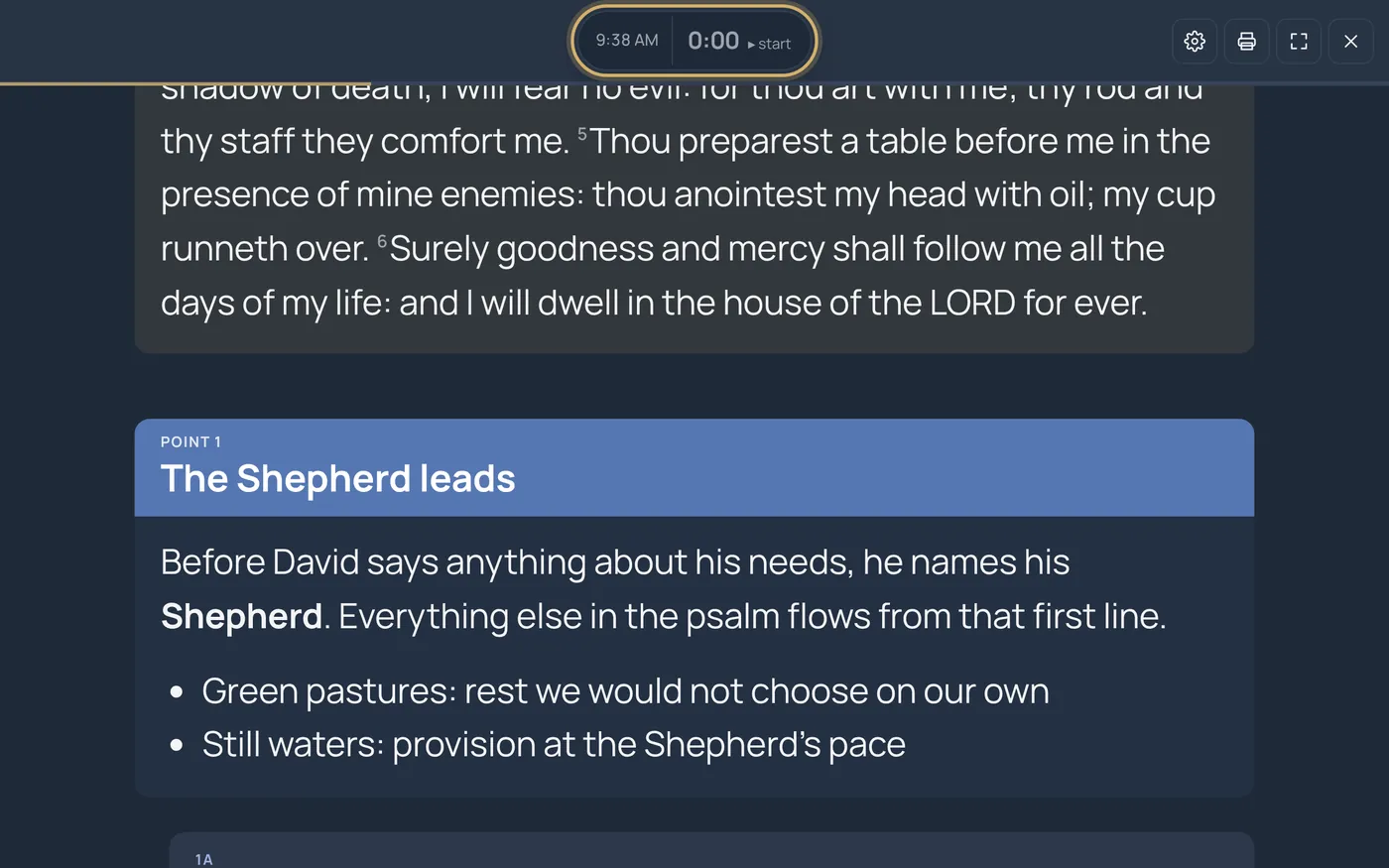
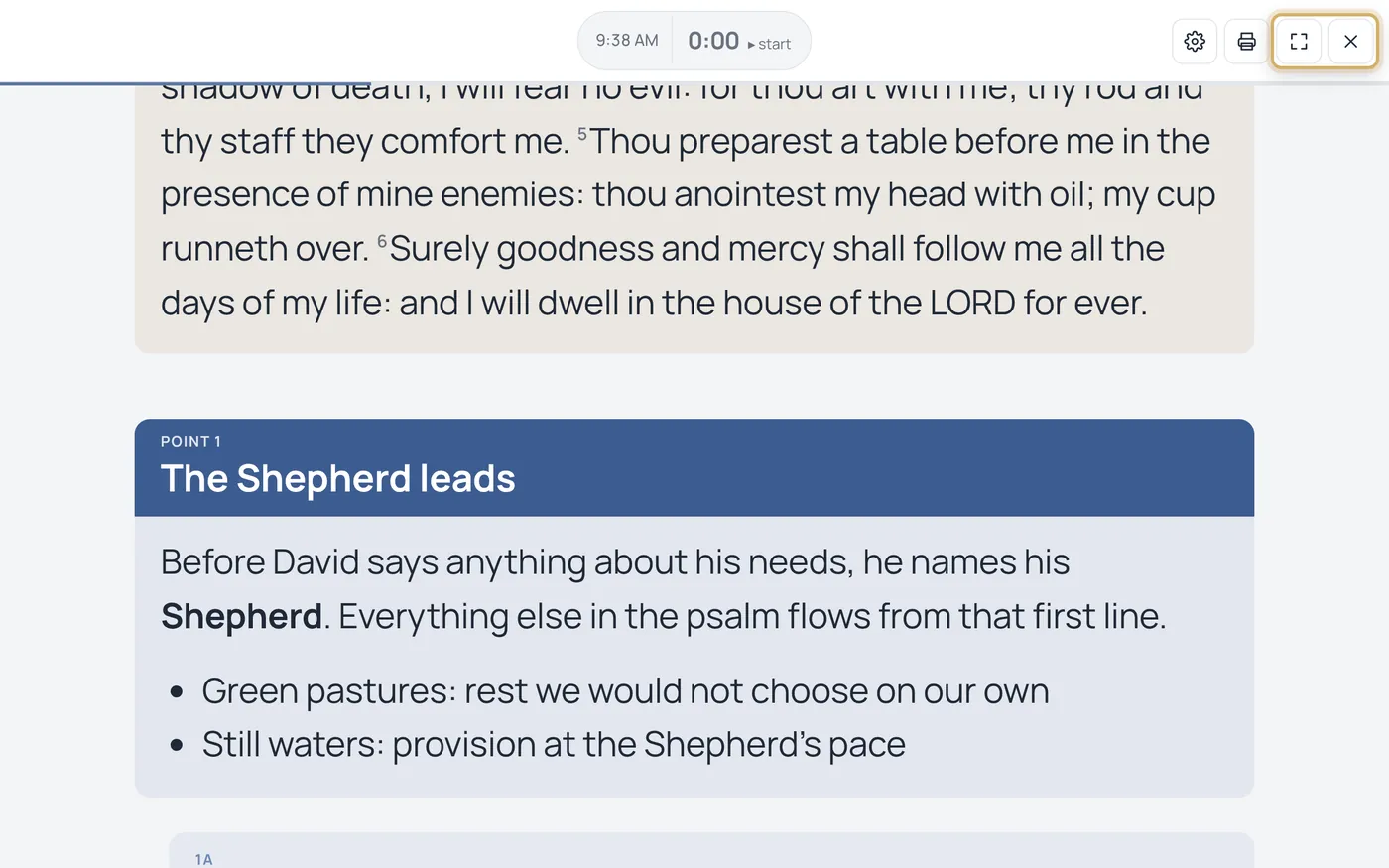
The pill at the top shows the time of day and your timer. Tap the timer (or press T) to start and pause it. The thin line under the top bar shows how far through the sermon you are.
-
Text size and theme
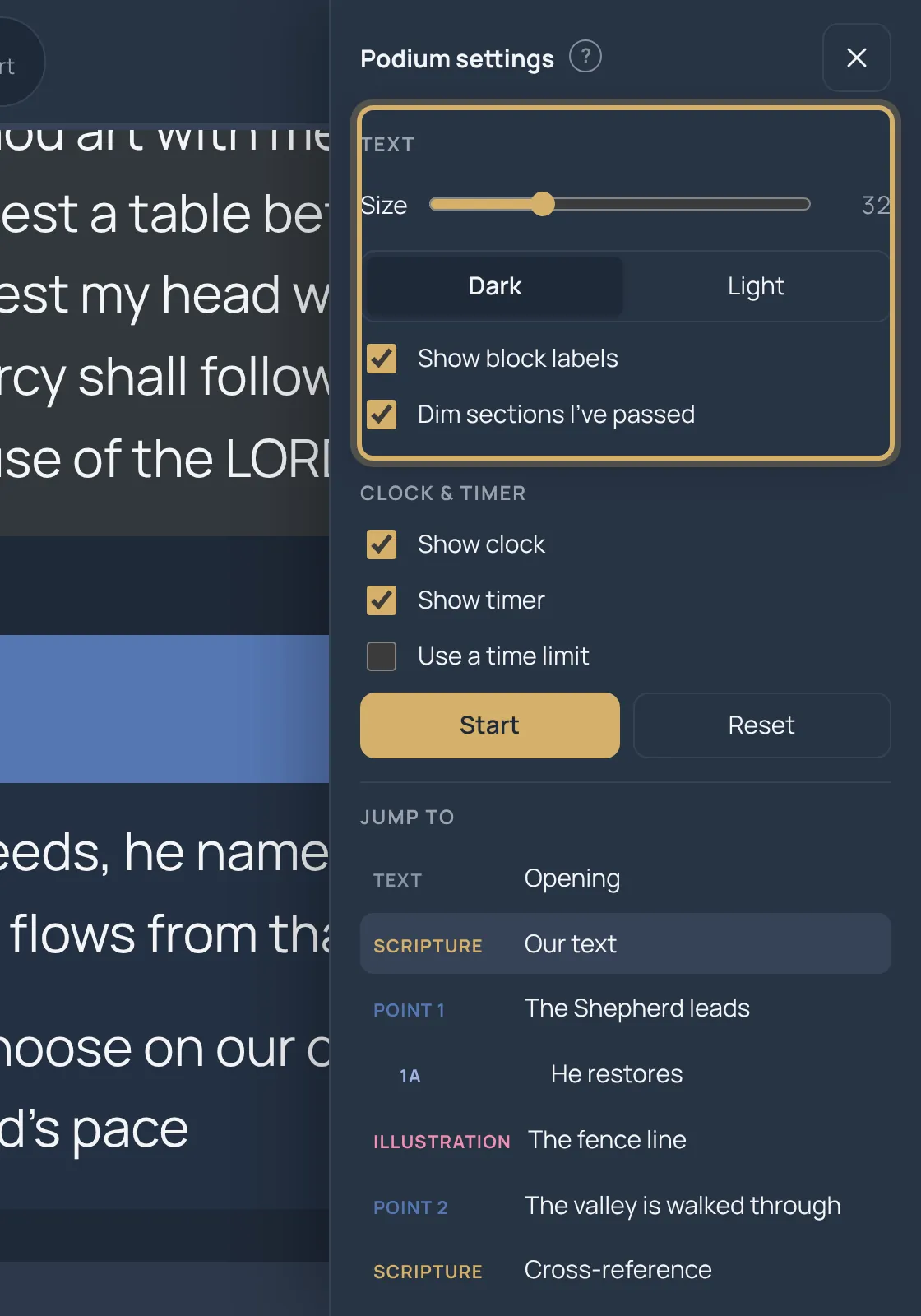
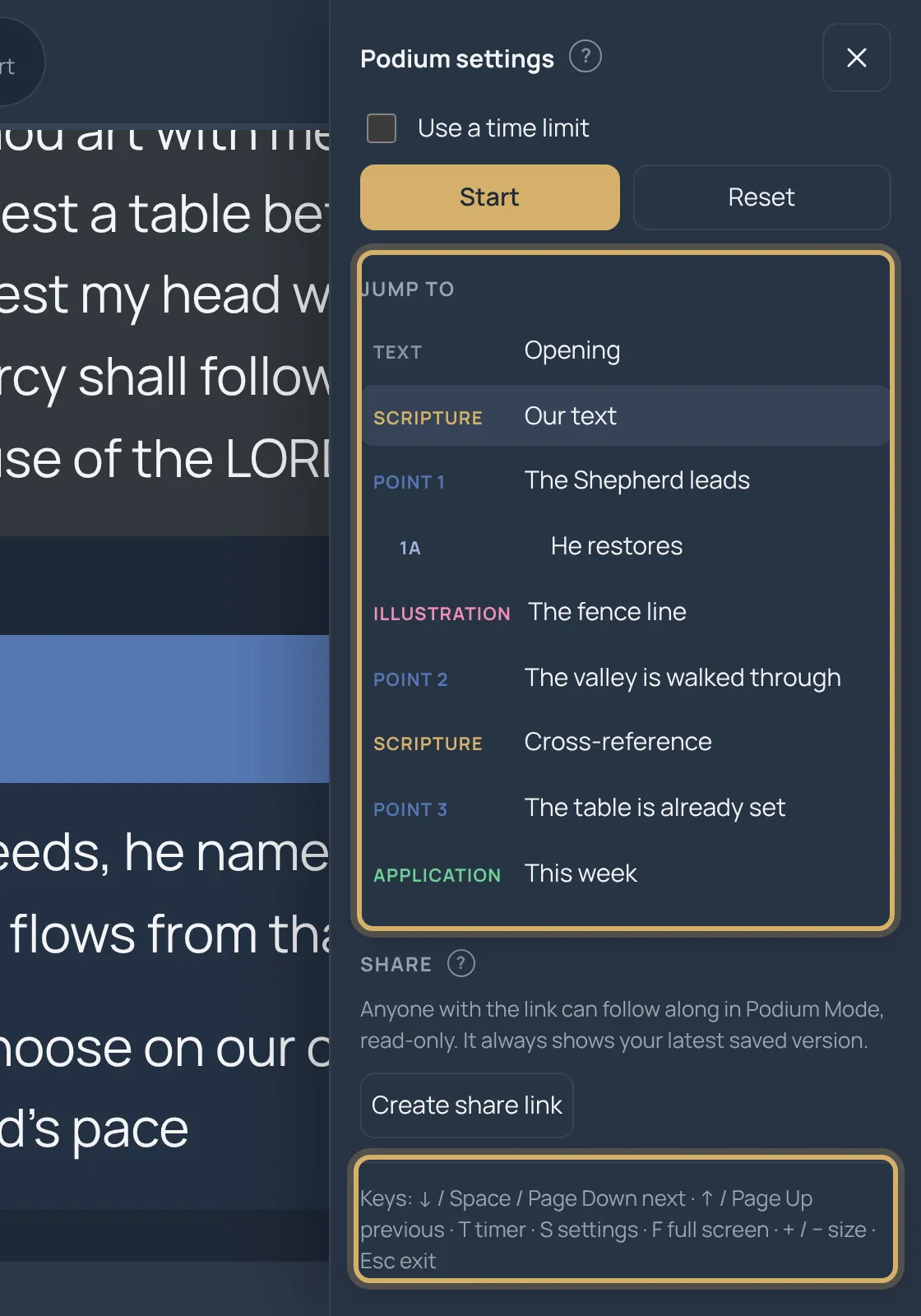
Press the gear (or S) for settings. Drag Size until it’s easy to read at arm’s length, choose Dark or Light, and choose whether to show block labels and dim the sections you’ve passed. Homileto remembers your settings.
-
Set a time limit
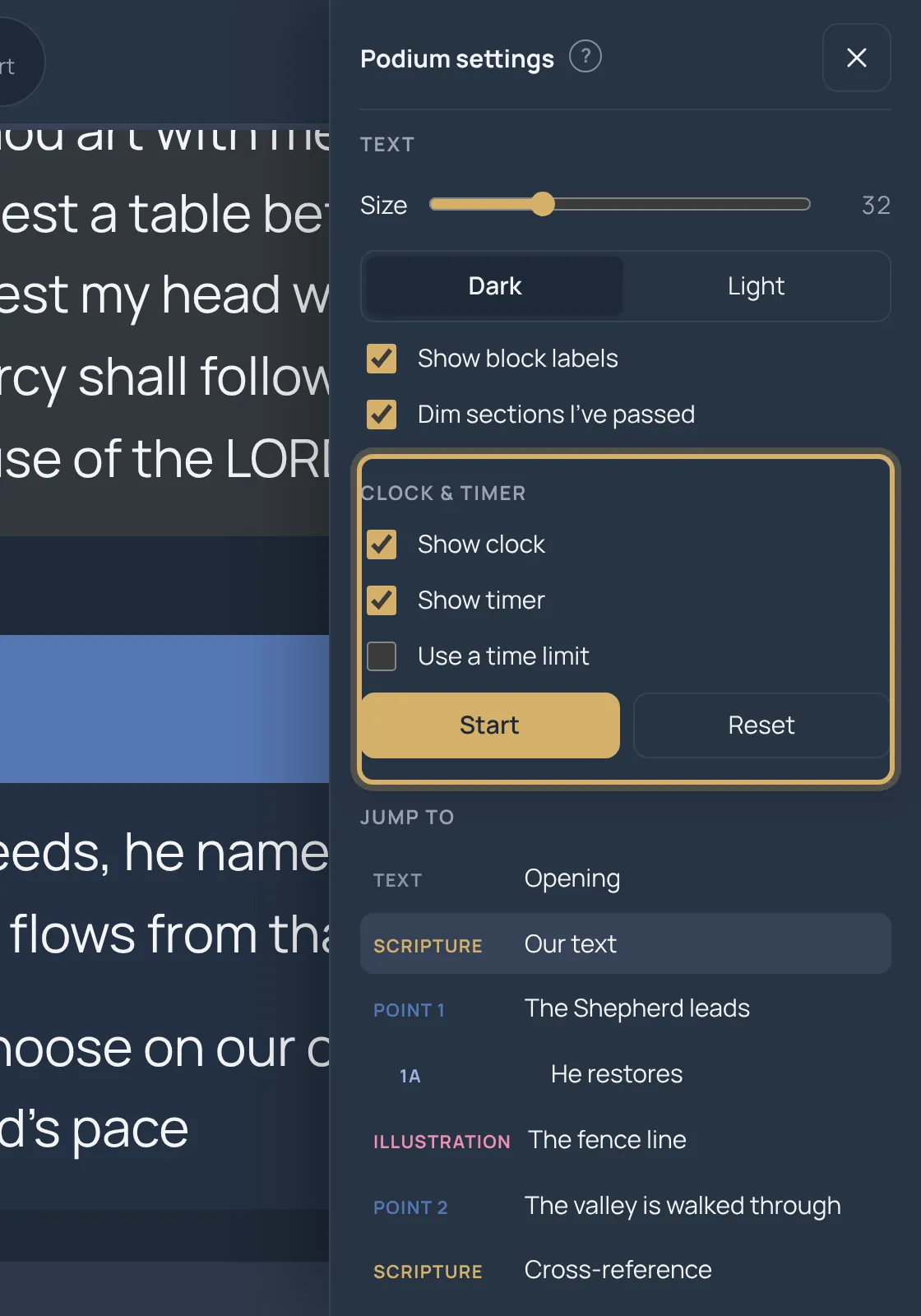
Turn on Use a time limit, enter the minutes, and choose to count up or down. The timer turns amber in the last five minutes and red when you go over.
-
Jump around, or use a clicker
Jump to lists every block; tap one to go straight there. To move through the sermon, use ↓, Space or Page Down, and ↑ or Page Up to go back. Most presentation clickers send Page Down and Page Up, so they work too.
-
Full screen, and back to editing
Press the corners button (or F) for full screen. Press ✕ or Esc to go back to the editor.
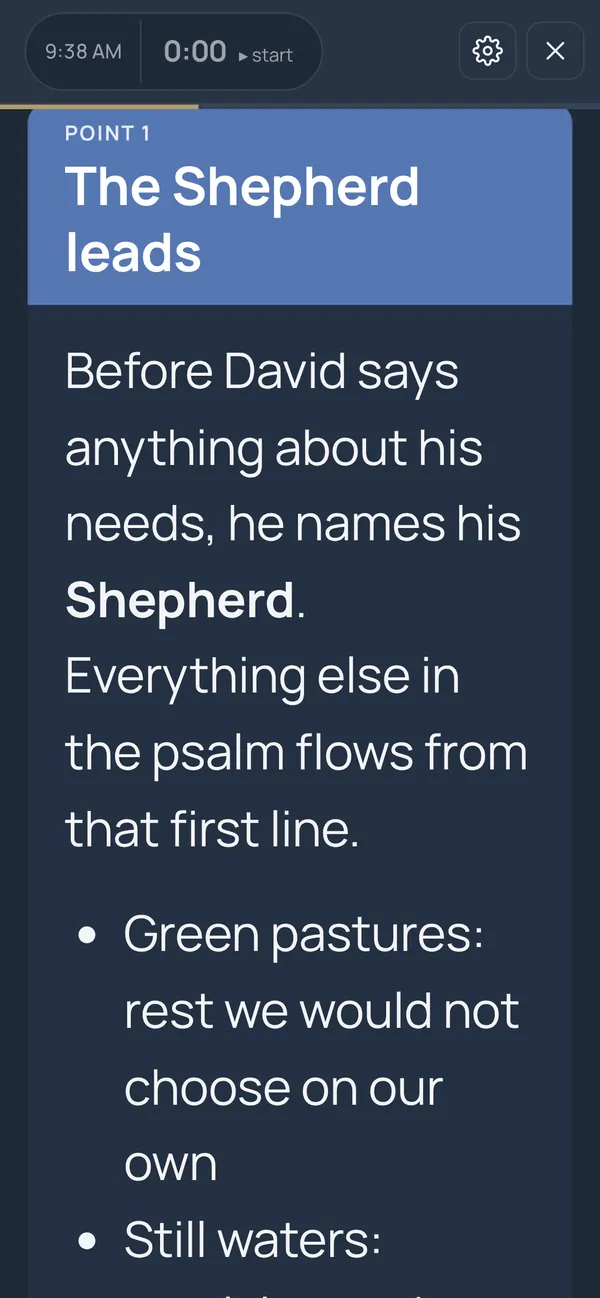
Podium Mode on a phone.